> ## Documentation Index
> Fetch the complete documentation index at: https://developers.particle.network/llms.txt
> Use this file to discover all available pages before exploring further.
# Initialization & Configuration
> Configure project credentials, choose an account mode, and tune the trade config.
To configure Universal Accounts:
1. Import the UniversalAccount class in your app:
```ts theme={null}
import {
UniversalAccount,
UNIVERSAL_ACCOUNT_VERSION,
} from "@particle-network/universal-account-sdk";
```
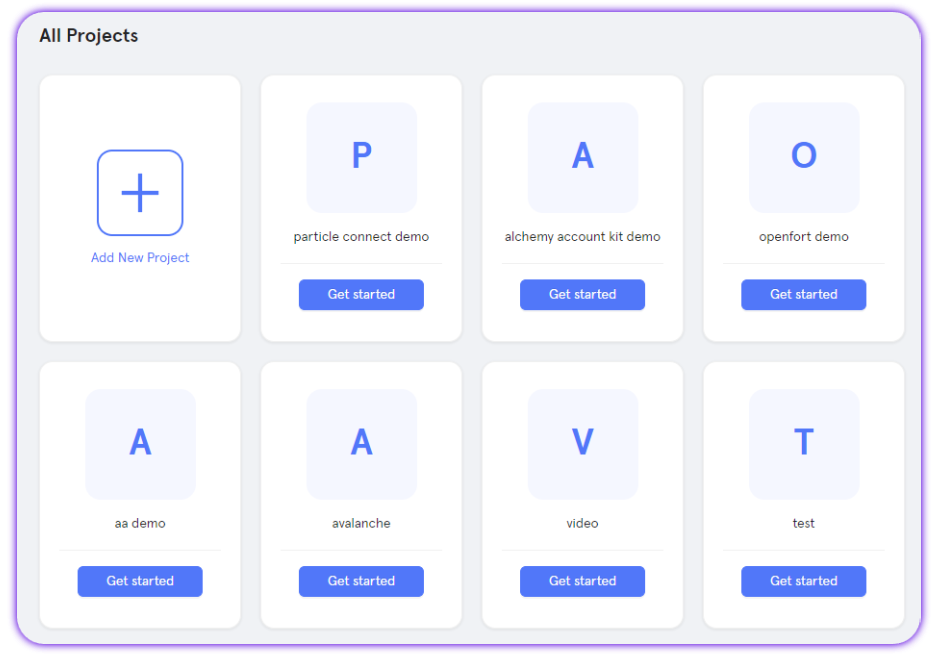
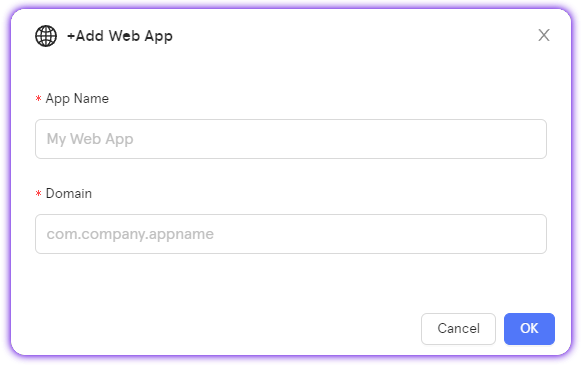
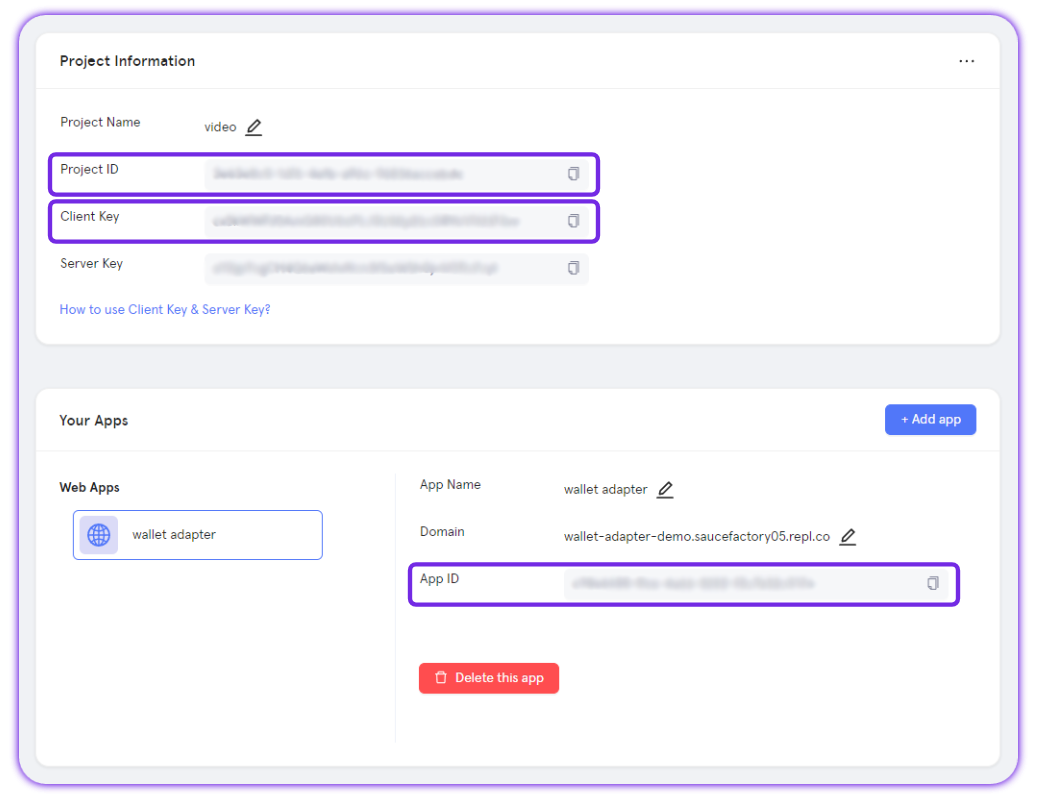
2. The Universal Accounts SDK requires Particle project credentials from the [Particle Dashboard](https://dashboard.particle.network/). To retrieve your project credentials:
3. Then, initialize Universal Accounts using your preferred mode:
**EIP-7702 is the default mode for Universal Accounts.**\
In this mode, the EOA used for authentication is upgraded to act directly as the Universal Account. However, if you wish to use Smart Account mode, simply set "useEIP7702" to "false".\
\
The section below dives deeper into the differences between both modes.
```ts theme={null}
const ua = new UniversalAccount({
projectId: process.env.NEXT_PUBLIC_PROJECT_ID!,
projectClientKey: process.env.NEXT_PUBLIC_CLIENT_KEY!,
projectAppUuid: process.env.NEXT_PUBLIC_APP_ID!,
smartAccountOptions: {
// 7702 mode: the EOA address itself becomes the Universal Account
useEIP7702: true,
name: "UNIVERSAL",
version: UNIVERSAL_ACCOUNT_VERSION,
ownerAddress: wallet.address,
},
// Optional: defaults to auto-slippage
tradeConfig: {
slippageBps: 100, // 1% slippage tolerance
// usePrimaryTokens: [SUPPORTED_TOKEN_TYPE.SOL], // Only for swaps
},
});
```
4. You can now use the `ua` instance to fetch Universal Account data (addresses and unified balances) and to send transactions across supported chains.
## About 7702 Mode (Default)
In 7702 mode, the EOA address used for authentication is the Universal Account.
All Universal Account features—such as chain abstraction, unified balances, and gas abstraction—are applied directly to the user's original EOA.
**Current limitation:**
* 7702 mode is only available in server-side environments and embedded wallets that support the authorization methods.
* JSON-RPC wallets are not supported at the moment.
Using 7702 mode requires you to authorize the user's EOA to act as the Universal Account on the specified chain before transacting.
Once this delegation is successful, all subsequent transactions will automatically execute on that chain.\
\
To authorize the 7702 mode automatically on new chains, run the below pattern when sending transactions:
```ts theme={null}
const universalAccount = new UniversalAccount(universalAccountConfig);
const transaction = await universalAccount.createConvertTransaction({
expectToken: { type: SUPPORTED_TOKEN_TYPE.USDT, amount: '0.0001' },
chainId: CHAIN_ID.BSC_MAINNET,
});
// Handle 7702 Authorization
const authorizations: EIP7702Authorization[] = [];
const nonceMap = new Map();
for (const userOp of transaction.userOps) {
if (!!userOp.eip7702Auth && !userOp.eip7702Delegated) {
let signature = nonceMap.get(userOp.eip7702Auth.nonce);
if (!signature) {
const authorization = wallet.authorizeSync(userOp.eip7702Auth);
signature = authorization.signature.serialized;
nonceMap.set(userOp.eip7702Auth.nonce, signature);
}
authorizations.push({
userOpHash: userOp.userOpHash,
signature: signature,
});
}
}
```
Find serverside examples using Universal Accounts in EIP-7702 mode.
Demos and integration notes for Dynamic, Magic, and Privy embedded wallets with 7702 mode.
### Verifying EIP-7702 delegation
To check whether EIP-7702 delegation is active for a Universal Account, query the registered deployments:
```ts theme={null}
const deployments = await universalAccount.getEIP7702Deployments();
console.log(deployments);
```
This call returns an array of EIP-7702 deployment records, including the delegated contract addresses and their current status for each chain.
## Smart Account Mode (JSON-RPC wallets)
This mode exists for compatibility with JSON-RPC wallets, but does not provide the same zero-friction experience as 7702 mode.\
\
As mentioned above, if you need to support Smart Account mode, simply change the following variable upon initialization:
```ts theme={null}
useEIP7702: false
```
In this mode:
* A separate smart account is created and attached to the EOA.
* The smart account has its own address.
* Users must transfer assets to the smart account before use.
## Trade Config
### Control which tokens are used for swaps
When initializing a **Universal Account**, you can control which tokens are eligible to be used as the source for swap operations.
To do this, set the `usePrimaryTokens` field inside the `tradeConfig` object. This lets you restrict swap logic to specific tokens (e.g. only allow SOL to be spent, not USDT or ETH).
Example:
```ts theme={null}
tradeConfig: {
usePrimaryTokens: [SUPPORTED_TOKEN_TYPE.SOL],
}
```
This is useful if you want to:
* Ensure predictable token usage during swaps.
* Prevent certain tokens from being auto-selected as swap input.
* Customize the user experience around token prioritization.
## Reference implementation
Sample Next.js app using Particle Auth with Universal Accounts.
## Next steps
Retrieve the owner EOA, EVM UA, and Solana UA addresses.
Fetch unified balances and per-chain breakdowns.