> ## Documentation Index
> Fetch the complete documentation index at: https://developers.particle.network/llms.txt
> Use this file to discover all available pages before exploring further.

# Web Quickstart

export const InteractiveLayout = () => {
  const ethereumIcon = "https://static.particle.network/mintlify/snippets/logos/eth.png";
  const polygonIcon = 'https://static.particle.network/mintlify/snippets/logos/polygon.png';
  const seiIcon = 'https://static.particle.network/mintlify/snippets/logos/sei.png';
  const baseIcon = 'https://static.particle.network/mintlify/snippets/logos/base.png';
  const BerachainbArtioIcon = 'https://static.particle.network/mintlify/snippets/logos/bera.png';
  const authIcons = {
    email: 'https://static.particle.network/mintlify/snippets/logos/email.png',
    phone: 'https://static.particle.network/mintlify/snippets/logos/phone.png',
    facebook: 'https://static.particle.network/mintlify/snippets/logos/facebook.png',
    google: 'https://static.particle.network/mintlify/snippets/logos/google.png',
    apple: 'https://static.particle.network/mintlify/snippets/logos/apple.png',
    twitter: 'https://static.particle.network/mintlify/snippets/logos/twitter.png',
    discord: 'https://static.particle.network/mintlify/snippets/logos/discord.png',
    github: 'https://static.particle.network/mintlify/snippets/logos/github.png',
    microsoft: 'https://static.particle.network/mintlify/snippets/logos/microsoft.png',
    linkedin: 'https://static.particle.network/mintlify/snippets/logos/linkedin.png'
  };
  if (typeof document === "undefined") {
    return null;
  } else {
    setTimeout(() => {
      const chains = [{
        id: 'mainnet',
        name: 'Ethereum',
        icon: ethereumIcon
      }, {
        id: 'polygon',
        name: 'Polygon',
        icon: polygonIcon
      }, {
        id: 'sei',
        name: 'Sei',
        icon: seiIcon
      }, {
        id: 'base',
        name: 'Bese',
        icon: baseIcon
      }, {
        id: 'berachainTestnetbArtio',
        name: 'BerachainbArtio',
        icon: BerachainbArtioIcon
      }];
      let selectedChains = ['mainnet', 'polygon'];
      let selectedAuthTypes = ['email', 'google', 'twitter', 'github'];
      let allSocialLoginsSelected = false;
      const authTypes = Object.keys(authIcons);
      const handleToggleChain = chainId => {
        const index = selectedChains.indexOf(chainId);
        if (index > -1) {
          selectedChains = selectedChains.filter(id => id !== chainId);
        } else {
          selectedChains.push(chainId);
        }
        renderToggles();
        renderCodeSnippet();
      };
      const handleToggleAuthType = authTypeId => {
        if (authTypeId === 'allSocialLogins') {
          allSocialLoginsSelected = !allSocialLoginsSelected;
          selectedAuthTypes = allSocialLoginsSelected ? [] : selectedAuthTypes;
        } else {
          const index = selectedAuthTypes.indexOf(authTypeId);
          if (index > -1) {
            selectedAuthTypes = selectedAuthTypes.filter(id => id !== authTypeId);
          } else {
            selectedAuthTypes.push(authTypeId);
          }
          allSocialLoginsSelected = false;
        }
        renderAuthToggles();
        renderCodeSnippet();
      };
      const renderToggles = () => {
        const toggleContainer = document.getElementById('toggle-buttons');
        toggleContainer.innerHTML = chains.map(chain => `
          <button
            class="toggle-button ${selectedChains.includes(chain.id) ? 'selected' : ''}"
            onclick="handleToggleChain('${chain.id}')"
          >
            <img src="${chain.icon}" alt="${chain.name}" class="icon"/>
          </button>
        `).join('') + `<button
          class="toggle-button"
          onclick="window.location.href='/guides/network-coverage';"
          style="opacity: 0.5; color: white; background-color: rgba(255, 255, 255, 0.1);"
        >
          +62
        </button>`;
      };
      const renderAuthToggles = () => {
        const authToggleContainer = document.getElementById('auth-toggle-buttons');
        authToggleContainer.innerHTML = `
          <button
            class="toggle-button ${allSocialLoginsSelected ? 'selected' : ''}"
            onclick="handleToggleAuthType('allSocialLogins')"
          >
            All
          </button>
        ` + authTypes.map(authType => `
          <button
            class="toggle-button ${selectedAuthTypes.includes(authType) ? 'selected' : ''}"
            onclick="handleToggleAuthType('${authType}')"
          >
            <img src="${authIcons[authType]}" alt="${authType}" class="icon"/>
          </button>
        `).join('');
      };
      const renderCodeSnippet = () => {
        const importStatements = `import { ${selectedChains.join(", ")} } from "@particle-network/authkit/chains";`;
        const supportChainsArray = `chains: [${selectedChains.join(", ")}],`;
        const authTypesArray = !allSocialLoginsSelected ? `authTypes: [${selectedAuthTypes.map(type => `AuthType.${type}`).join(", ")}],` : "// No need for the authTypes array if you want to include all of the available social login options";
        const codeSnippet = `
  "use client";

  // Particle imports
  ${importStatements} // Chains are imported here
  import { AuthType } from "@particle-network/auth-core";
  import {
    AuthCoreContextProvider,
    PromptSettingType,
  } from "@particle-network/authkit"; 

  export const ParticleAuthkit = ({ children }: React.PropsWithChildren) => {
    return (
      <AuthCoreContextProvider
        options={{
          projectId: process.env.NEXT_PUBLIC_PROJECT_ID!,
          clientKey: process.env.NEXT_PUBLIC_CLIENT_KEY!,
          appId: process.env.NEXT_PUBLIC_APP_ID!,
          ${authTypesArray}
          themeType: "dark",

          // List the chains you want to include
          ${supportChainsArray}

          // Optionally, switches the embedded wallet modal to reflect a smart account
          // erc4337: {
          //   name: "SIMPLE",
          //   version: "2.0.0",
          // },

          // You can prompt the user to set up extra security measures upon login or other interactions
          promptSettingConfig: {
            promptPaymentPasswordSettingWhenSign: PromptSettingType.first,
            promptMasterPasswordSettingWhenLogin: PromptSettingType.first,
          },

          wallet: {
            themeType: "dark", // Wallet modal theme

            // Set to false to remove the embedded wallet modal
            visible: true,
            customStyle: {
              supportUIModeSwitch: true,
              supportLanguageSwitch: false,
            },
          },
        }}
      >
        {children}
      </AuthCoreContextProvider>
    );
  };

  `;
        const codeSnippetContainer = document.getElementById('code-snippets');
        codeSnippetContainer.innerHTML = `
  <div class="snippet-header">
    <span class="language-label">AuthKit.tsx</span>
    <button id="copy-button" class="copy-button">
      <img src="https://static.particle.network/mintlify/snippets/logos/copy.png" alt="Copy icon" class="copy-icon"/>
    </button>
  </div>
  <pre><code>${escapeHtml(codeSnippet)}</code></pre>
`;
        const copyButton = document.getElementById('copy-button');
        copyButton.addEventListener('click', () => {
          navigator.clipboard.writeText(codeSnippet).then(() => {
            copyButton.innerHTML = '<span class="copied-text">Copied!</span>';
          }).catch(err => {
            console.error('Failed to copy: ', err);
          });
        });
      };
      const escapeHtml = unsafe => {
        return unsafe.replace(/&/g, "&amp;").replace(/</g, "&lt;").replace(/>/g, "&gt;").replace(/"/g, "&quot;").replace(/'/g, "&#039;");
      };
      window.handleToggleChain = handleToggleChain;
      window.handleToggleAuthType = handleToggleAuthType;
      renderToggles();
      renderAuthToggles();
      renderCodeSnippet();
    }, 1);
    return <div>
        <p class="section-header chain-selection">Chain selection</p>

        <div id="toggle-buttons" className="toggles"></div>
        <p class="section-header auth-selection">AuthType selection</p>
        <div id="auth-toggle-buttons" className="toggles"></div>
        <div id="code-snippets" className="code-snippet"></div>
      </div>;
  }
};

# Quickstart: Implementing Particle Auth within Web Applications

Getting started and integrating Particle Network's Wallet-as-a-Service within your web application often takes **less than five minutes**.

Below is a quick rundown on installing, configuring, and facilitating social logins within a typical Next.js application. For a more in-depth explanation of each feature, go to [Introduction to API & SDK overview](/social-logins/auth/introduction).

***

<Steps>
  <Step title="Installing Particle Auth">
    Particle Auth is the primary mechanism of implementing Particle Network's Wallet-as-a-Service and associated social authentication flow.

    To install Particle Auth within your project, copy and execute the following command.

    <CodeGroup>
      ```bash yarn theme={null}
      yarn add @particle-network/authkit @particle-network/wallet viem@2
      ```

      ```bash npm theme={null}
      npm install @particle-network/authkit @particle-network/wallet viem@2
      ```
    </CodeGroup>
  </Step>

  <Step title="Configuring Particle Auth">
    Once installed, you're ready to configure the SDK.

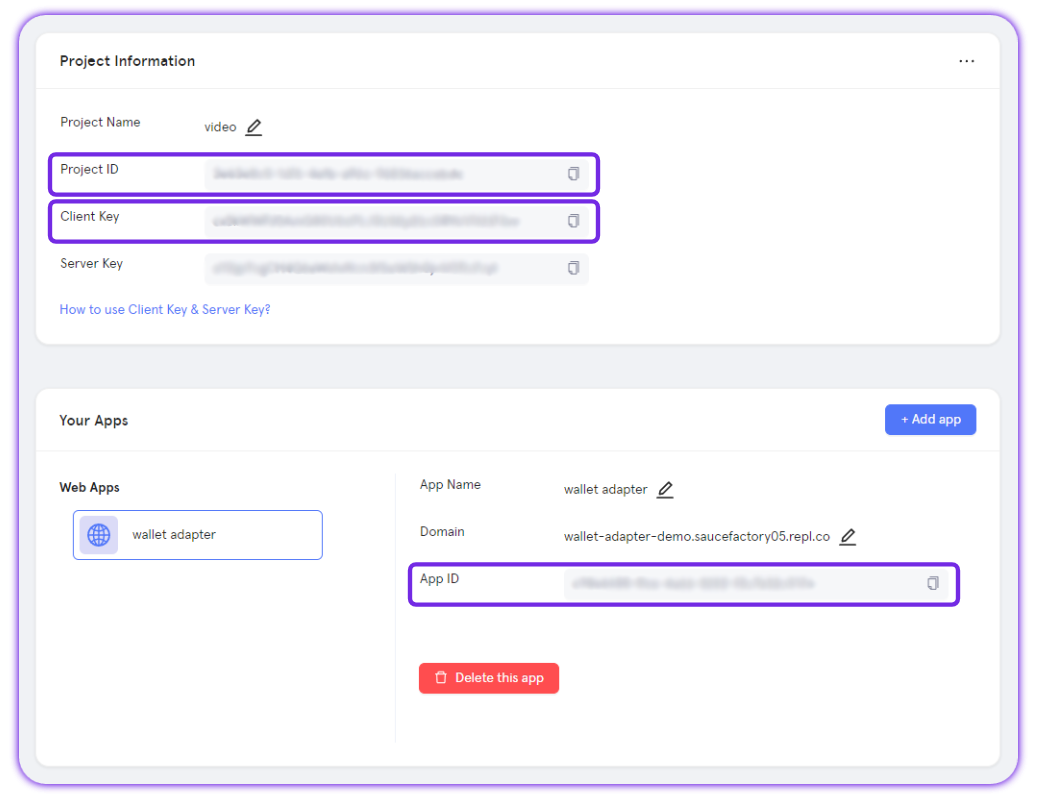
    Particle Auth requires three key values to be initiated: `projectId`, `clientKey`, and `appId`. These values fundamentally link your application with the [Particle dashboard](https://dashboard.particle.network/).

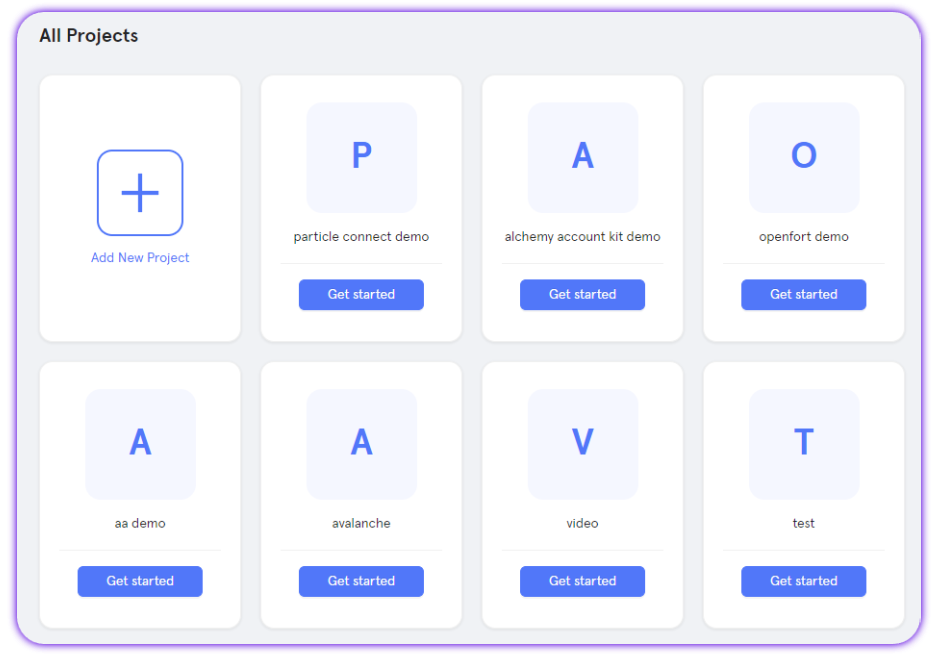
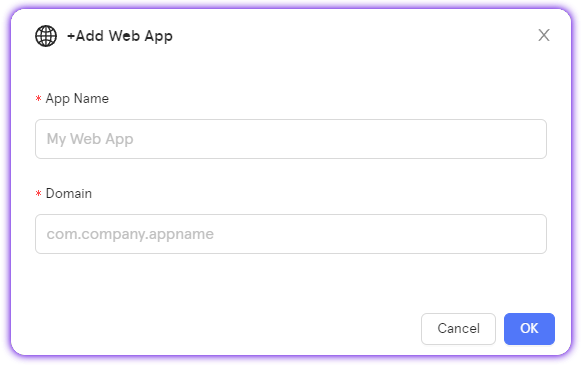
    To retrieve these values for configuration within your application, follow these steps:

    <AccordionGroup>
      <Accordion title="Access the Particle Dashboard">
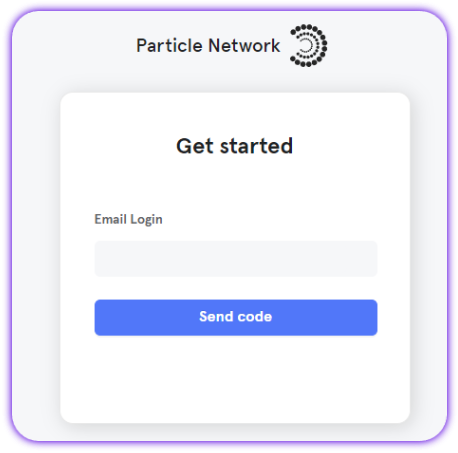
        Sign up or Log in into the [Particle dashboard](https://dashboard.particle.network/)

        <div className="flex justify-center">
          <img className="block h-64 dark:hidden" src="https://mintcdn.com/particlenetwork-fccf74d2/hR-XK15Ve4E3bk8E/social-logins/images/login.png?fit=max&auto=format&n=hR-XK15Ve4E3bk8E&q=85&s=82a68a9e5fce546a26db56e74d7c3b94" alt="Login into Particle." width="458" height="453" data-path="social-logins/images/login.png" />

          <img className="hidden h-64 dark:block" src="https://mintcdn.com/particlenetwork-fccf74d2/hR-XK15Ve4E3bk8E/social-logins/images/login.png?fit=max&auto=format&n=hR-XK15Ve4E3bk8E&q=85&s=82a68a9e5fce546a26db56e74d7c3b94" alt="Login into Particle." width="458" height="453" data-path="social-logins/images/login.png" />
        </div>
      </Accordion>

      <Accordion title="Create a new project or enter an existing project">
        <div className="flex justify-center">
          <img className="block h-64 dark:hidden" src="https://mintcdn.com/particlenetwork-fccf74d2/hR-XK15Ve4E3bk8E/social-logins/images/project.png?fit=max&auto=format&n=hR-XK15Ve4E3bk8E&q=85&s=1b5cd03116f224e1cba3a88a04a1f0a5" alt="Create Particle project." width="939" height="657" data-path="social-logins/images/project.png" />

          <img className="hidden h-64 dark:block" src="https://mintcdn.com/particlenetwork-fccf74d2/hR-XK15Ve4E3bk8E/social-logins/images/project.png?fit=max&auto=format&n=hR-XK15Ve4E3bk8E&q=85&s=1b5cd03116f224e1cba3a88a04a1f0a5" alt="Create Particle project." width="939" height="657" data-path="social-logins/images/project.png" />
        </div>
      </Accordion>

      <Accordion title="Create a new web application, or skip this step if you already have one">
        <div className="flex justify-center">
          <img className="block h-64 dark:hidden" src="https://mintcdn.com/particlenetwork-fccf74d2/hR-XK15Ve4E3bk8E/social-logins/images/web-app.png?fit=max&auto=format&n=hR-XK15Ve4E3bk8E&q=85&s=8f51019e7b9968aca5528541f819eb4e" alt="Create web app." width="584" height="369" data-path="social-logins/images/web-app.png" />

          <img className="hidden h-64 dark:block" src="https://mintcdn.com/particlenetwork-fccf74d2/hR-XK15Ve4E3bk8E/social-logins/images/web-app.png?fit=max&auto=format&n=hR-XK15Ve4E3bk8E&q=85&s=8f51019e7b9968aca5528541f819eb4e" alt="Create web app." width="584" height="369" data-path="social-logins/images/web-app.png" />
        </div>
      </Accordion>

      <Accordion title="Retrieve the project ID (`projectId`), the client key (`clientKey`), and the application ID (`appId`)">
        <div className="flex justify-center">
          <img className="block h-64 dark:hidden" src="https://mintcdn.com/particlenetwork-fccf74d2/hR-XK15Ve4E3bk8E/social-logins/images/credentials.png?fit=max&auto=format&n=hR-XK15Ve4E3bk8E&q=85&s=c196b87c62dc17aae0f624035e3a2c19" alt="Find app's credentials." width="1039" height="800" data-path="social-logins/images/credentials.png" />

          <img className="hidden h-64 dark:block" src="https://mintcdn.com/particlenetwork-fccf74d2/hR-XK15Ve4E3bk8E/social-logins/images/credentials.png?fit=max&auto=format&n=hR-XK15Ve4E3bk8E&q=85&s=c196b87c62dc17aae0f624035e3a2c19" alt="Find app's credentials." width="1039" height="800" data-path="social-logins/images/credentials.png" />
        </div>
      </Accordion>
    </AccordionGroup>

    For more information on the Particle dashboard, take a look at [this video](https://www.youtube.com/watch?v=d7DYCMNDmjo\&ab_channel=ParticleNetwork) or visit the [dashboard quickstart](/social-logins/dashboard).

    With your `projectId`, `clientKey`, and `appId` retrieved, you'll need to configure Particle Auth within your application through `AuthCoreContextProvider` from `@particle-network/authkit`, the primary React component responsible for initializing Particle Auth.
  </Step>

  <Step title="Configuring `AuthCoreContextProvider`">
    The `AuthCoreContextProvider` component handles the configuration for Particle Auth. It's best practice to place this configuration in a dedicated `AuthKit.tsx` file within the `src` directory, where you can set up and export the component.

    Once configured, you can use this export to wrap your main `App` component, ensuring authentication is available throughout your application.

    Here’s an example of how to configure `AuthCoreContextProvider`:

    <InteractiveLayout />

    <Tip>Learn more about the Particle Auth configuration options in the [Particle Auth SDK page](/social-logins/auth/desktop-sdks/web).</Tip>
  </Step>

  <Step title="Wrap your application with ParticleAuthkit">
    Wrap your main application component (where you use the Particle Auth hooks) with the `ParticleAuthKit` component, which is exported from `AuthKit`.

    Here’s an example of how this might look in a `layout.tsx` file:

    ```tsx layout.tsx theme={null}
    import type { Metadata } from "next";
    import { Inter } from "next/font/google";
    import "./globals.css";

    const inter = Inter({ subsets: ["latin"] });

    import { ParticleAuthkit } from "./components/AuthKit";

    export const metadata: Metadata = {
      title: "Particle Auth app",
      description: "App leveraging Particle Auth for social logins.",
    };

    export default function RootLayout({
      children,
    }: Readonly<{
      children: React.ReactNode;
    }>) {
      return (
        <html lang="en">
          <body className={inter.className}>
            <ParticleAuthkit>{children}</ParticleAuthkit>
          </body>
        </html>
      );
    }

    ```
  </Step>

  <Step title="Facilitating logins">
    With the SDK configured, you can move on to initiating social logins within your application. Particle Auth contains [numerous relevant hooks](https://github.com/Particle-Network/particle-auth-ethers-demo/blob/7cf947b6c8a05731f285821b03134a6317e0e53f/particle-next-starter/src/app/page.tsx#L23), although we'll specifically be focusing on `useConnect`, which contains a function, `connect`, that directly facilitates [wallet creation]() through social login.

    Upon logging in, the embedded wallet modal included with Particle Auth will be accessible through the button in the bottom right, unless otherwise specified through `wallet` within `AuthCoreContextProvider`.

    ```tsx page.tsx theme={null}
    "use client";

    import { useConnect, useEthereum } from "@particle-network/authkit";

    export default function Home() {
      const { connect, disconnect, connected, connectionStatus } = useConnect();
      const { address } = useEthereum();

      // Handle user login
      const handleLogin = async () => {
        if (!connected) {
          await connect({});
        }
      };

      // Handle user logout
      const handleDisconnect = async () => {
        if (connected) {
          await disconnect();
        }
      };

      return (
        <main className="flex min-h-screen flex-col items-center justify-center bg-gradient-to-r from-gray-900 via-gray-800 to-gray-900 p-24">
          <h1 className="text-4xl font-extrabold text-white mb-8">
            Build with Particle Auth
          </h1>
          <h2 className="mb-4 text-lg font-bold text-white">
            Account status: {connectionStatus}
          </h2>
          {!connected ? (
            <div className="login-section">
              <button
                className="bg-purple-600 hover:bg-purple-500 text-white font-bold py-2 px-4 rounded transition duration-300 ease-in-out transform hover:scale-105 shadow-lg"
                onClick={handleLogin}
              >
                Sign in with Particle
              </button>
            </div>
          ) : (
            <div className="text-center">
              <h2 className="mb-4 text-lg font-bold text-white">
                Address: {address}
              </h2>
              <button
                className="bg-purple-600 hover:bg-purple-500 text-white font-bold py-2 px-4 rounded transition duration-300 ease-in-out transform hover:scale-105 shadow-lg"
                onClick={handleDisconnect}
              >
                Logout
              </button>
            </div>
          )}
        </main>
      );
    }

    ```

    <Tip>
      For the complete Particle Auth SDK reference, head over to the\
      <a href="/social-logins/auth/desktop-sdks/web">Web (JavaScript/TypeScript) documentation</a>.
      For practical examples, check out the following demo repositories:
      <ul>
        <li>
          Next.js: <a href="https://github.com/Particle-Network/particle-auth-ethers-demo/tree/main/particle-next-starter">Particle Auth Next Starter</a>
        </li>

        <li>
          Create React App: <a href="https://github.com/Particle-Network/particle-auth-ethers-demo/tree/main/particle-auth-cra">Particle Auth CRA Starter</a>
        </li>
      </ul>
    </Tip>
  </Step>
</Steps>

### Related Resources

<CardGroup cols={3}>
  <Card title="Customization" href="/social-logins/configuration/appearance/auth">
    Customizing Particle Auth.
  </Card>

  <Card title="Supported Blockchains" href="/social-logins/network-coverage">
    List of blockchains supported by Particle Auth.
  </Card>

  <Card title="Account Abstraction" href="/aa/sdks/desktop/web">
    Using Particle Auth to create smart accounts.
  </Card>
</CardGroup>